Gateways Details
View Gateway Details and update configuration of gateway
🔹 Click on the gateway name to view the details of the gateway
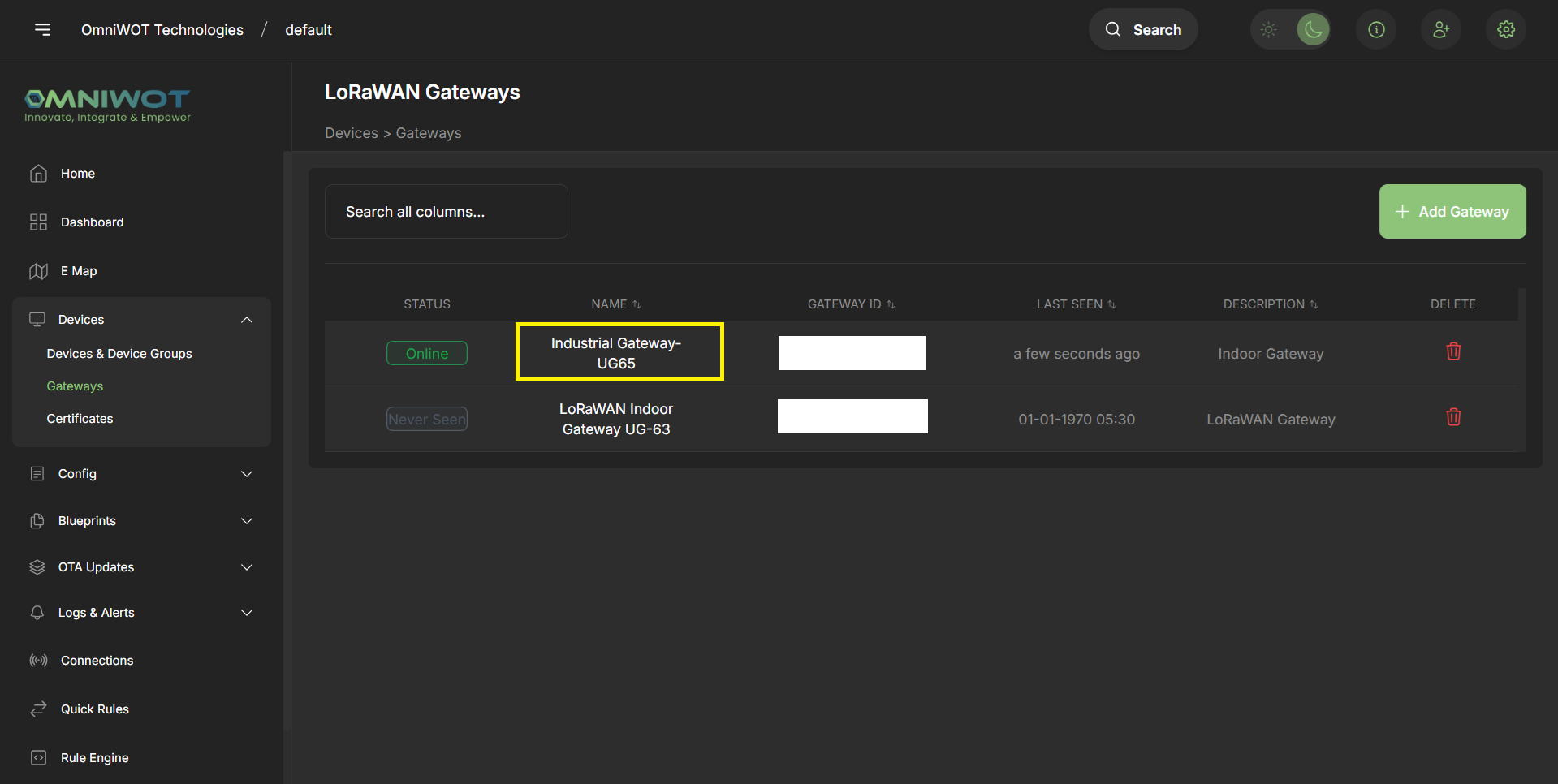
- You can see the four tabs in the gateway details page:
- Dashboard
- Configuration
- Certificates
- Lorawan Frames
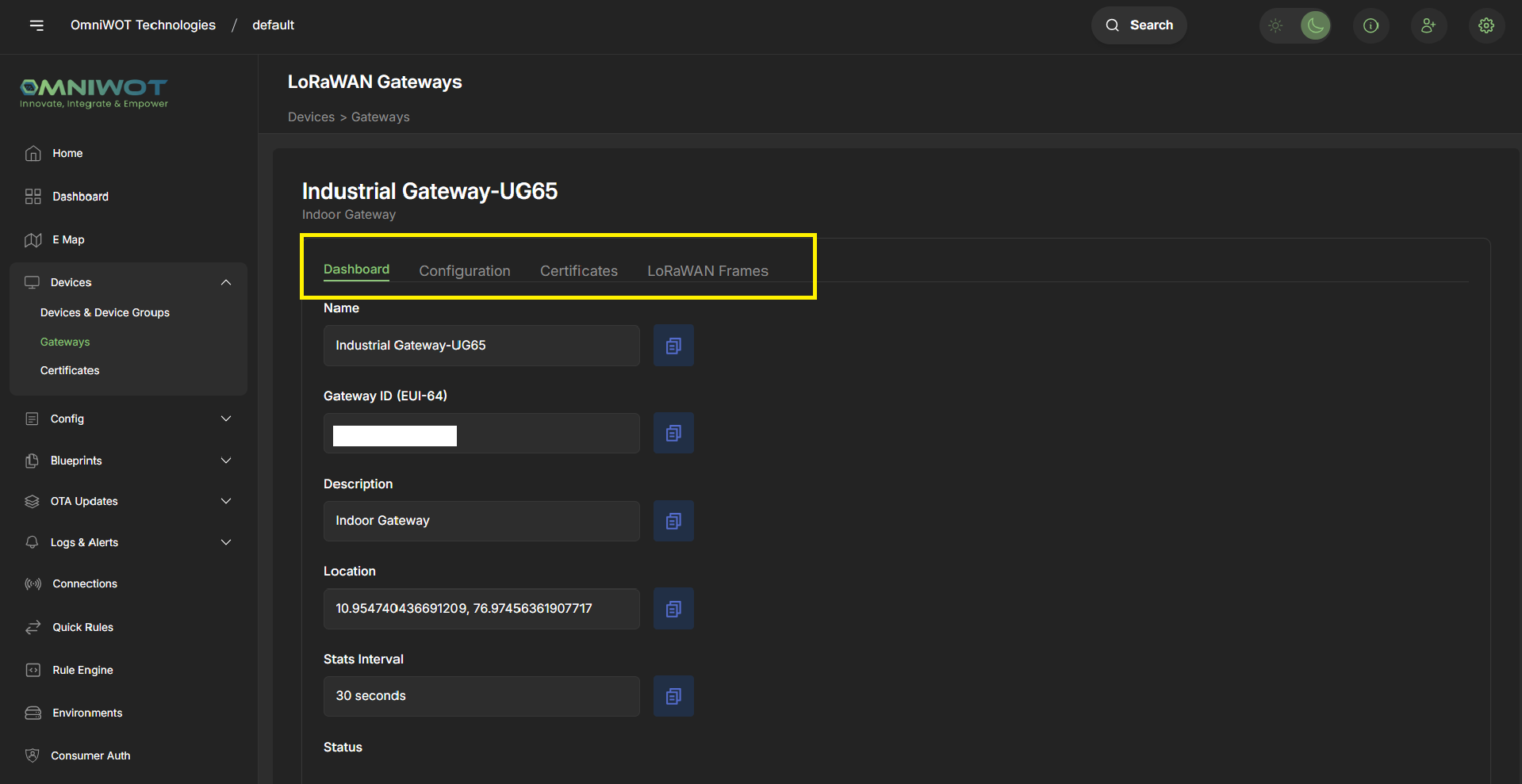
1. Dashboard
- In dashboard you can see the gateway details like name, id, etc.
2. Configuration
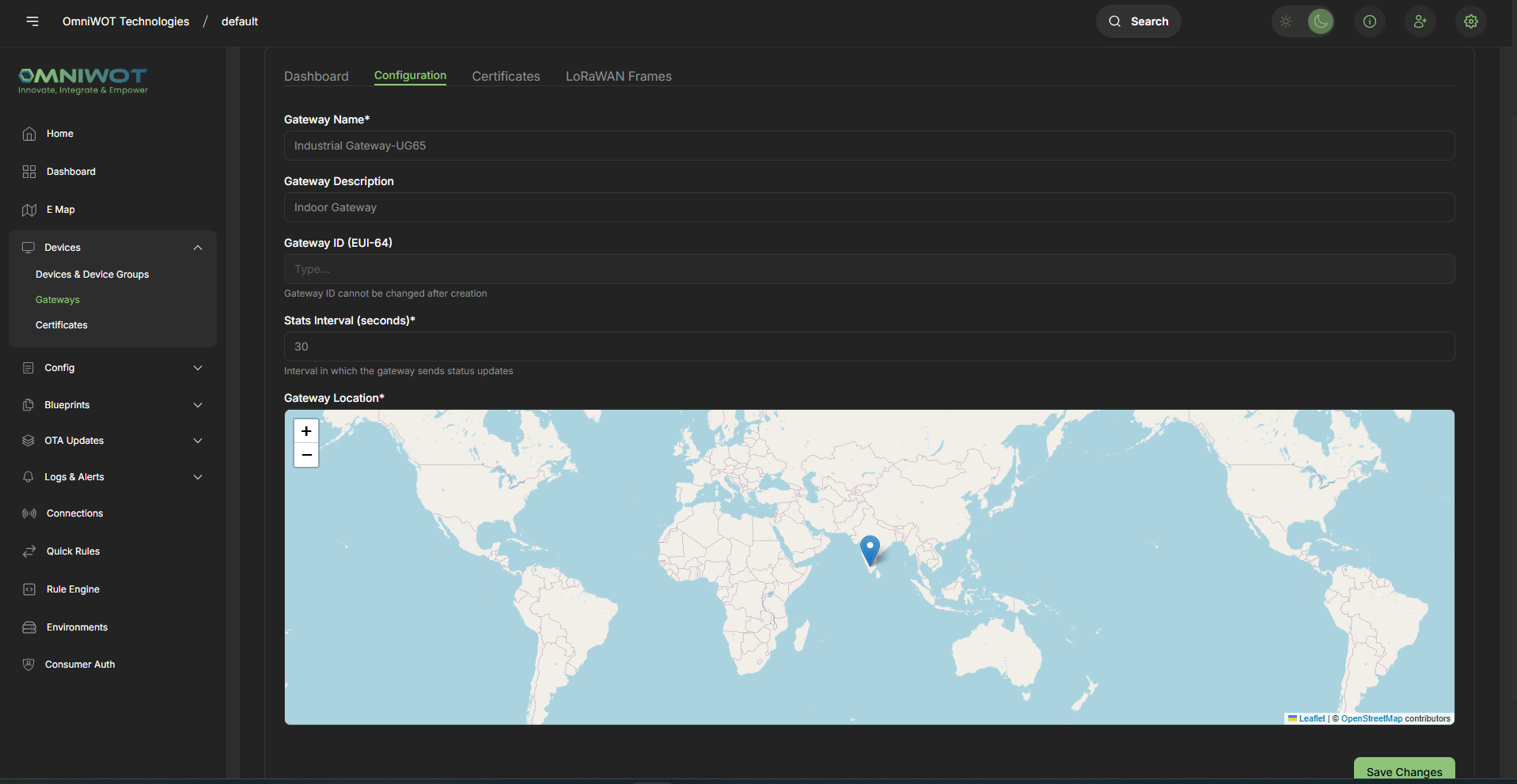
- In configuration you can update the gateway configuration like name, description, etc.
3. Certificates
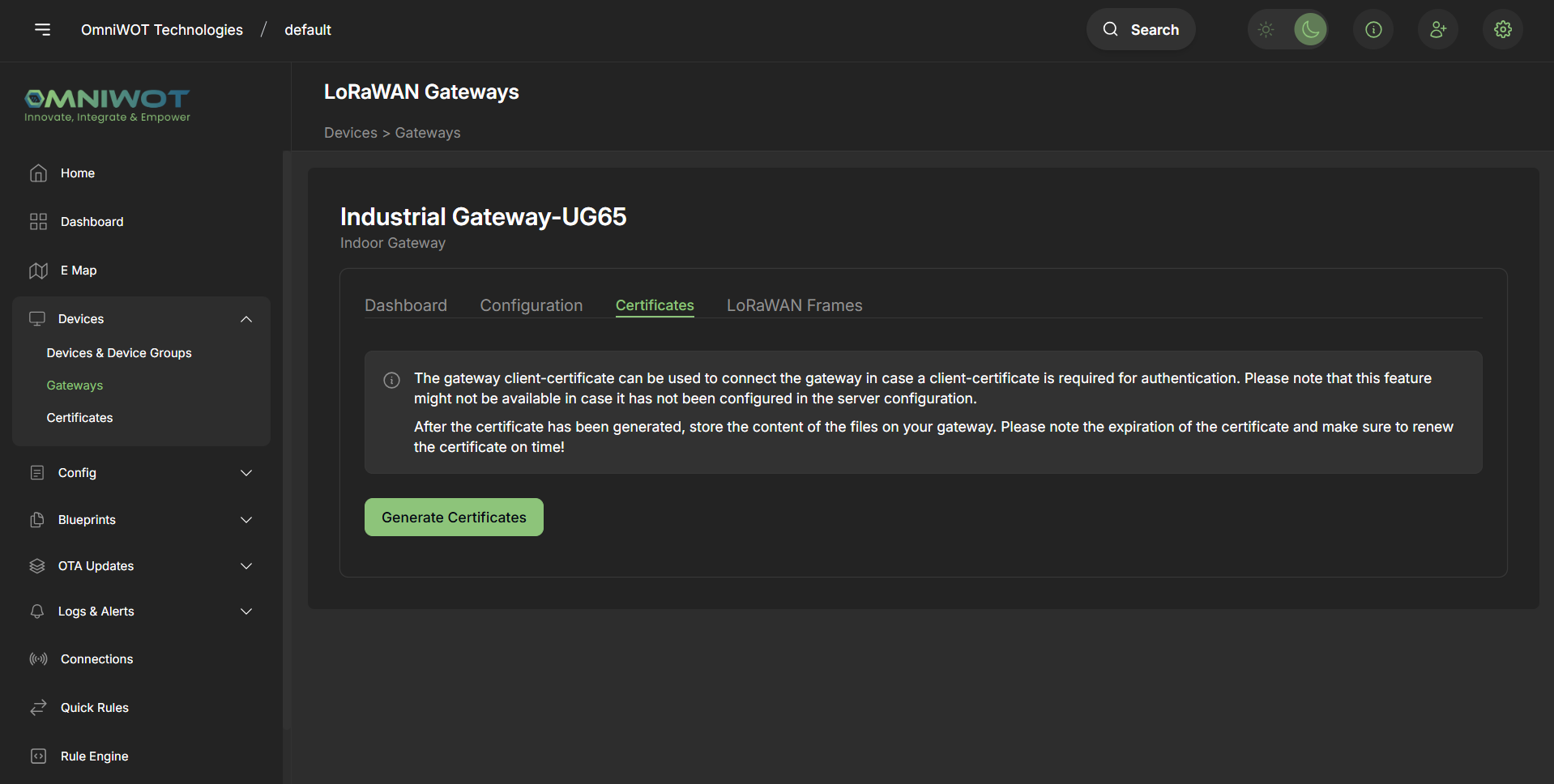
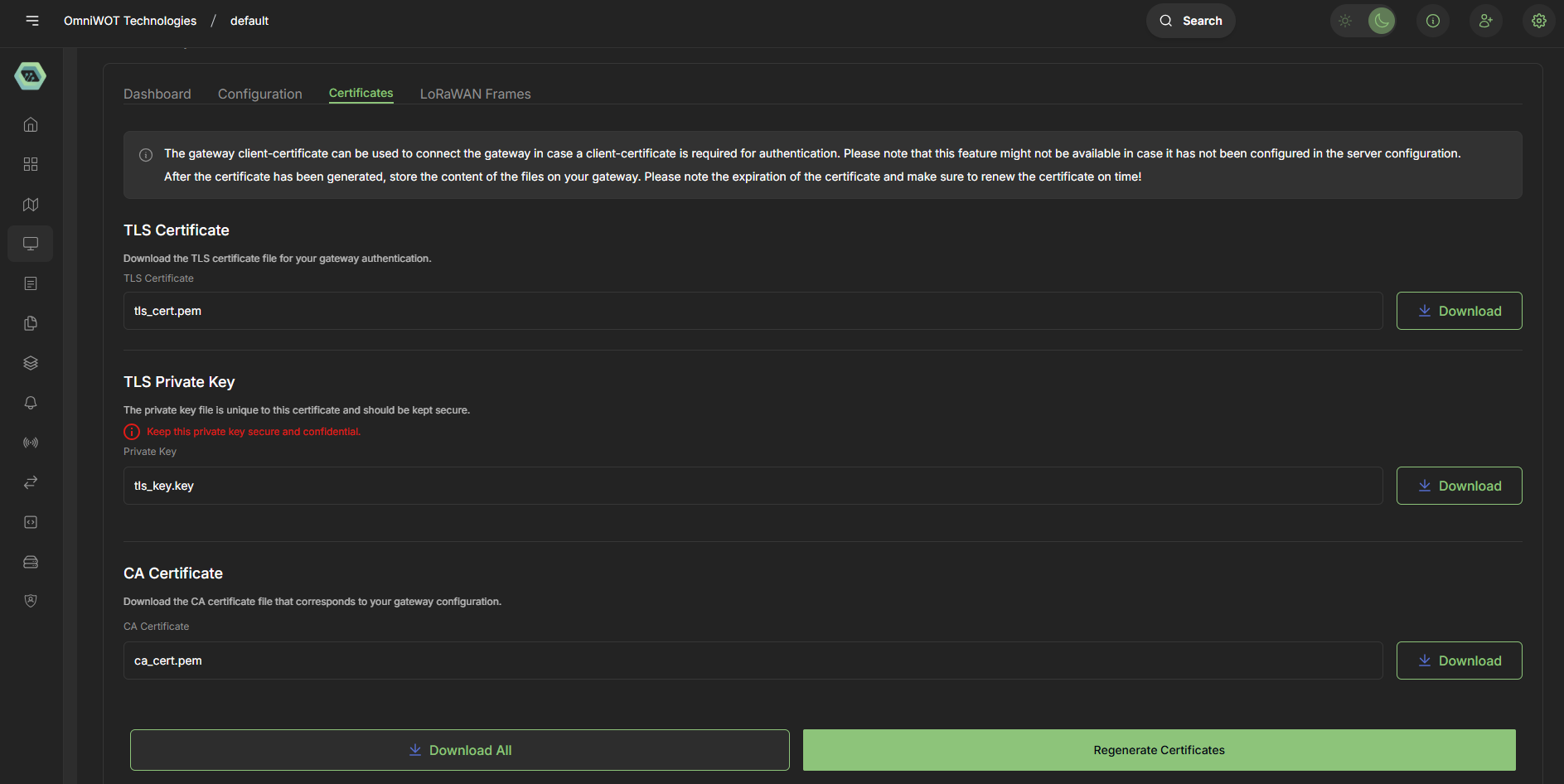
The gateway client-certificate can be used to connect the gateway in case a client-certificate is required for authentication. Please note that this feature might not be available in case it has not been configured in the server configuration. After the certificate has been generated, store the content of the files on your gateway. Please note the expiration of the certificate and make sure to renew the certificate on time!
Certificate Management
The Certificates tab provides three types of certificates for gateway authentication:
1. TLS Certificate
- Purpose: Download the TLS certificate file for your gateway authentication
- Action: Click the "Download" button to download the TLS certificate
2. TLS Private Key
- Purpose: The private key file is unique to this certificate and should be kept secure
- Security Warning: Keep this private key secure and confidential
- Action: Click the "Download" button to download the private key
3. CA Certificate
- Purpose: Download the CA certificate file that corresponds to your gateway configuration
- Action: Click the "Download" button to download the CA certificate
Certificate Actions
Download All: Download all certificate files at once
Regenerate Certificates: Generate new certificates for the gateway
4. LoRaWAN Frames
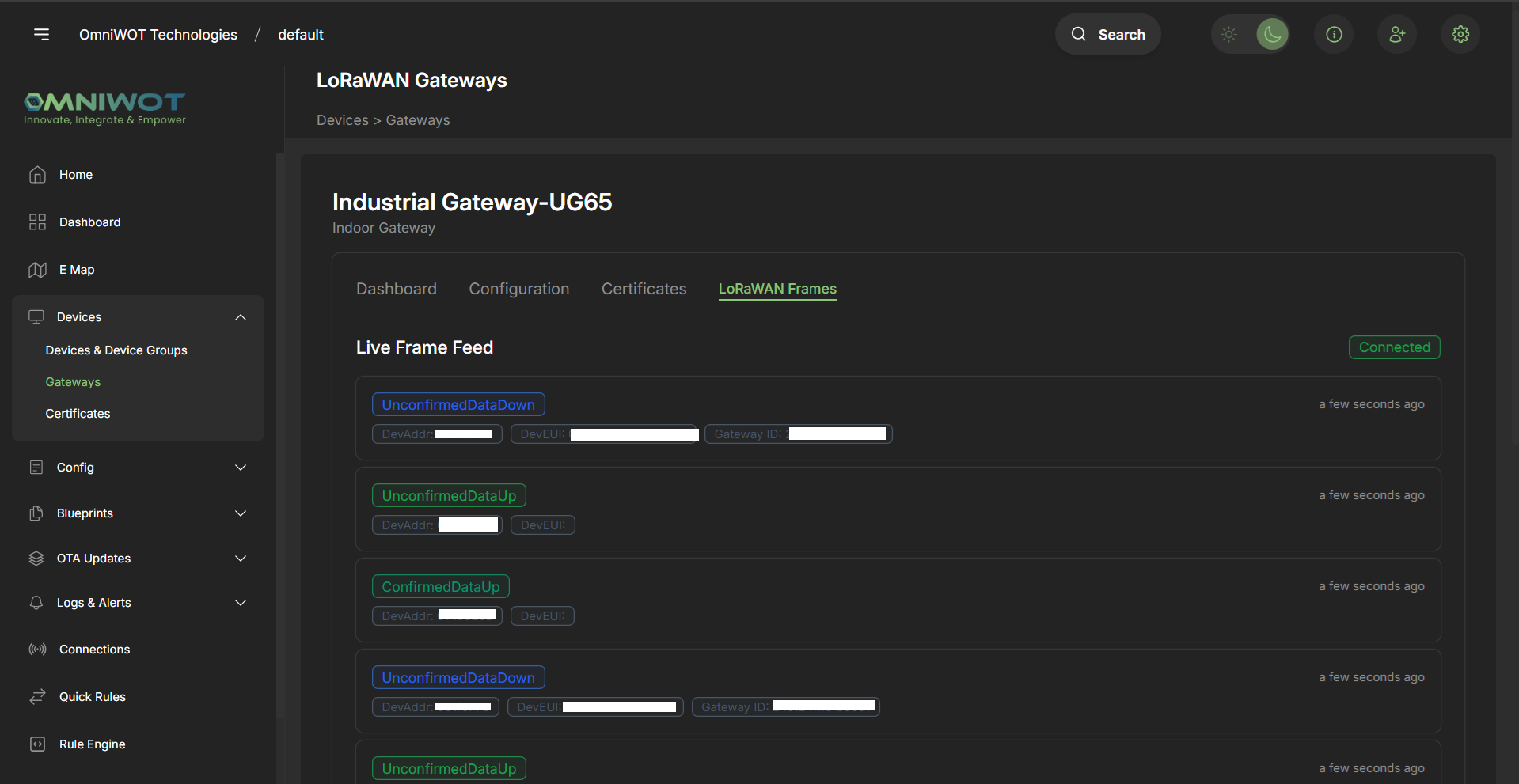
The LoRaWAN Frames tab provides a real-time view of all LoRaWAN communication activities for the gateway. This feature allows you to monitor live data transmission between devices and the gateway.
Live Frame Feed
The main interface displays a Live Frame Feed with a connection status indicator showing "Connected" when the gateway is actively receiving and transmitting LoRaWAN frames.
Frame Types and Status Indicators
The system displays different types of LoRaWAN frames with color-coded status indicators:
Frame Information
Each frame entry displays the following information:
- Frame Type: The type of LoRaWAN frame
- DevAddr: Device address identifier for the communicating device
- DevEUI: Device EUI (Extended Unique Identifier) when available
- Gateway ID: Gateway identifier (displayed for downlink frames)
- Timestamp: Time when the frame was received/transmitted (e.g., "a few seconds ago")
Real-time Monitoring
The Live Frame Feed provides real-time monitoring capabilities, allowing you to:
- Track device communication patterns
- Monitor data transmission success rates
- Debug connectivity issues
- Verify device registration and communication