Devices and Device Groups
Table of Contents
Introduction
Seamlessly onboard and manage IoT devices across multiple protocols with zero hassle. Connect via MQTT for reliable messaging, LoRaWAN for long-range communication, or HTTP for web-based integrations. Supports BACnet, Modbus, CANbus, and more—enabling rapid deployment and unified control from day one.
Devices
A Device in OmniWOT represents a physical LoRaWAN-enabled sensor or actuator registered on the platform. Each device has associated metadata, connectivity parameters, and payload configurations.
Key Capabilities:
- Onboard new LoRaWAN devices
- Assign devices to groups (fleet management)
- Configure codecs and measurement mappings
- View detailed device information
- Control via downlinks
Device Groups (Fleets)
Device Groups—also referred to as Fleets—are logical collections of devices sharing common traits like location, application, or device type.
They enable bulk actions such as:
- Monitoring grouped assets
- Assigning measurement dashboards
- Mapping configurations or profiles
- Applying smart filters (Smart Groups)
When to Use Groups:
- To manage 10+ devices with common use
- To apply dashboards or alerts in bulk
- To manage access roles for specific assets
Creating a Device Group
- Navigate to
Devices > Devices and Device Groups
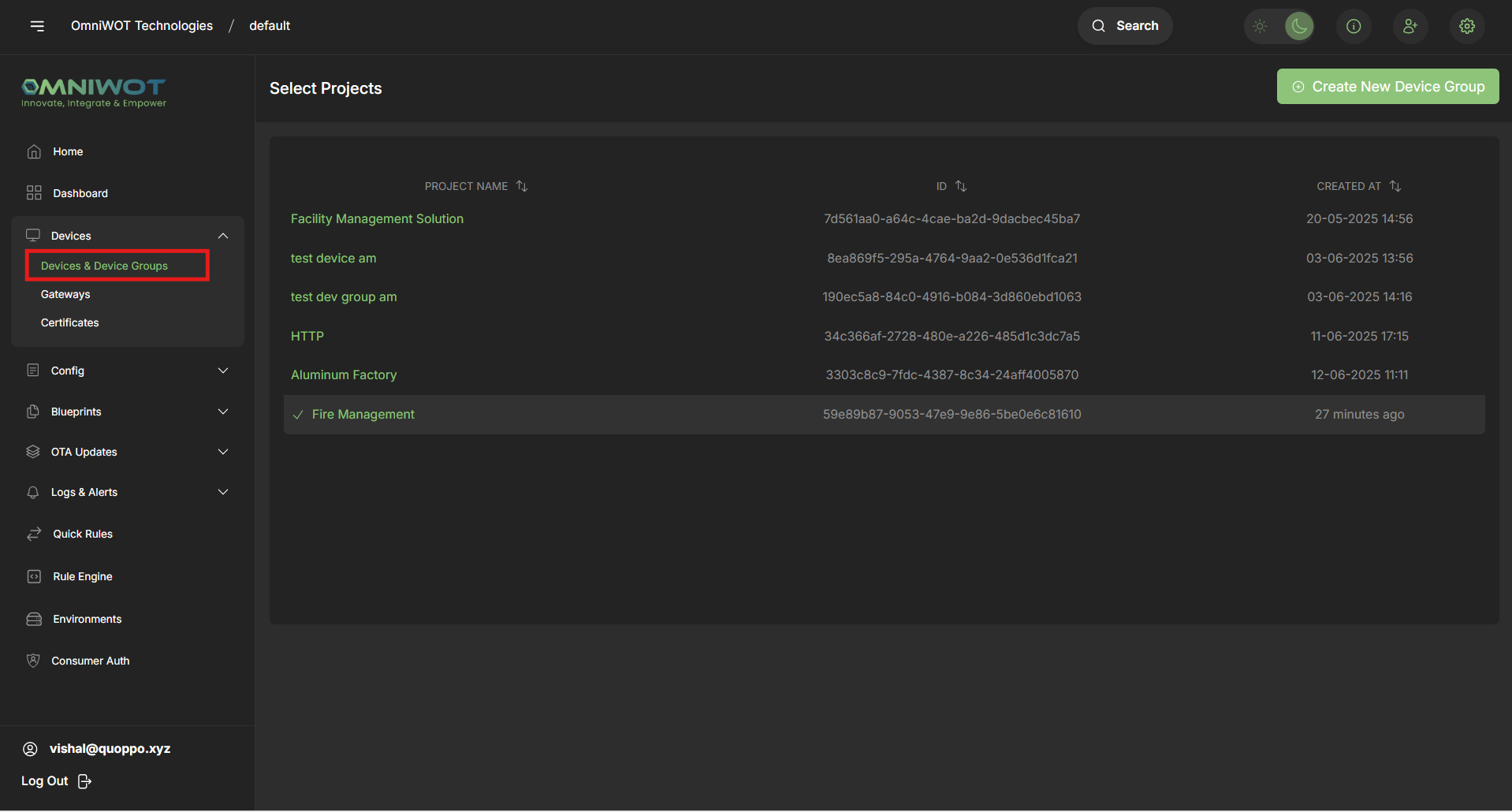
- Click Create New Device Group
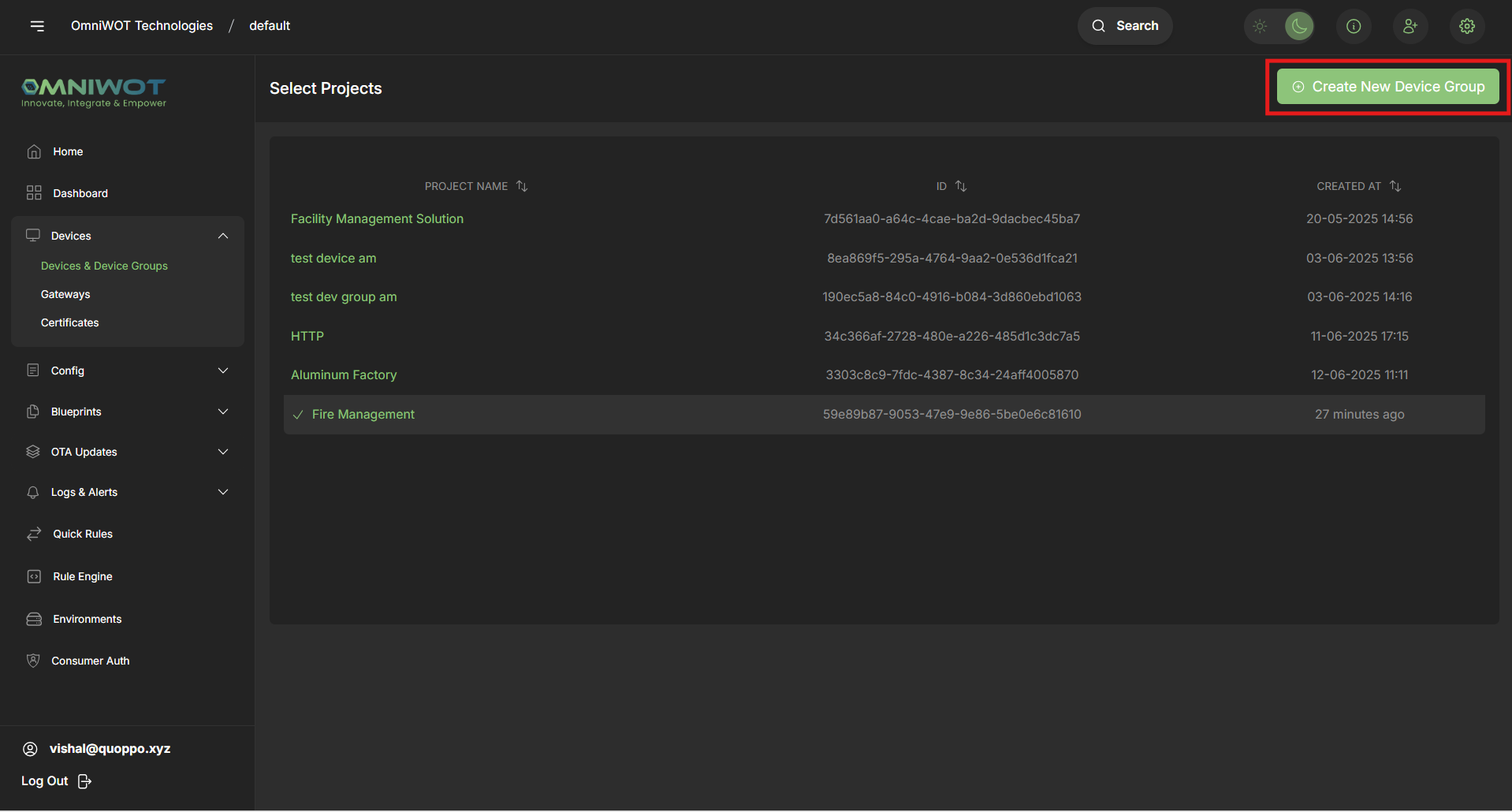
Fill in the form:
- Device Group Name
- Description (optional)
- Enable LoRaWAN (checkbox)
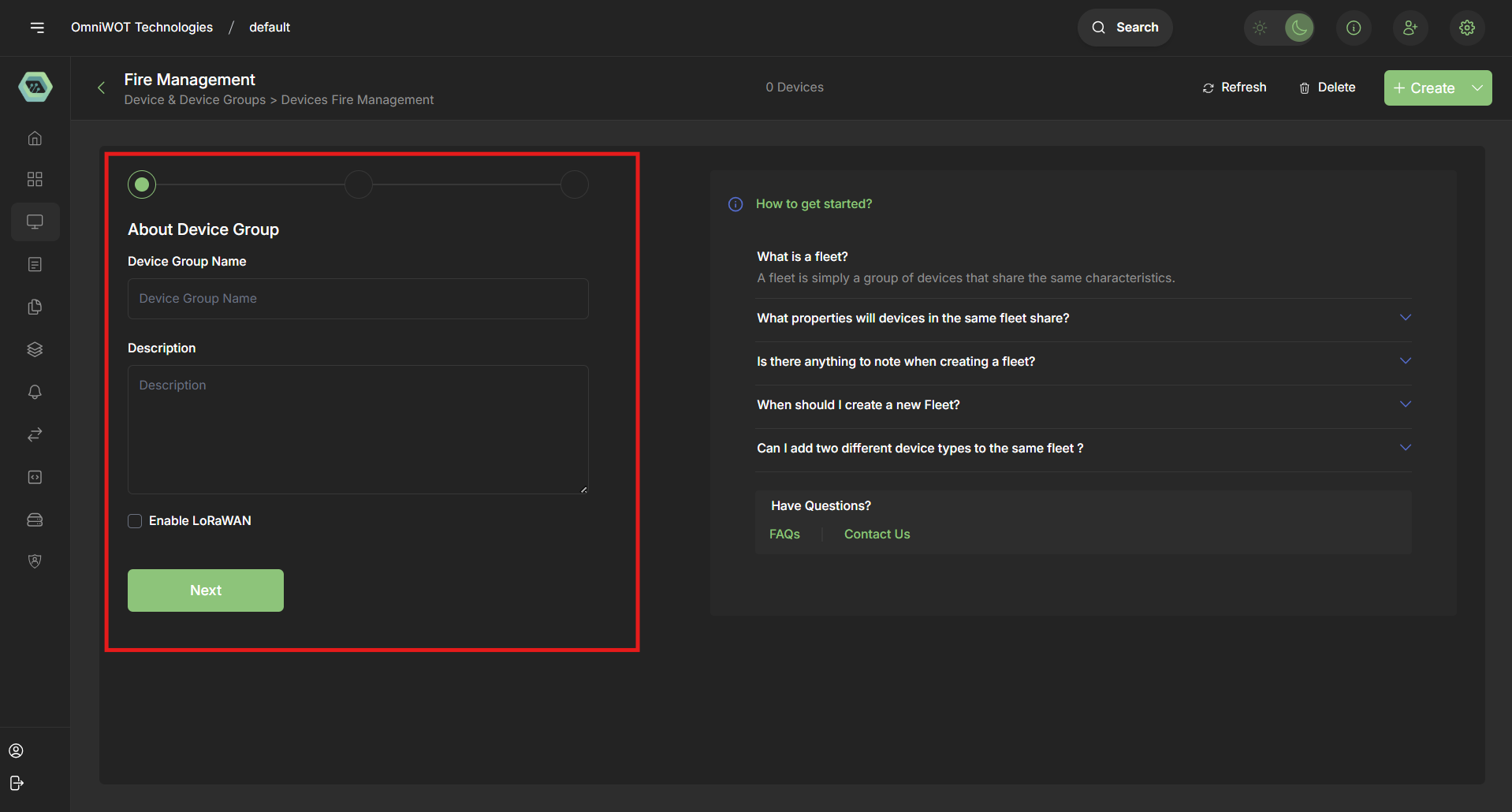
- Click Next to add devices from the existing list
✅ You can create an empty group and assign devices later.
Creating a Devices inside a Groups
Create Single Device
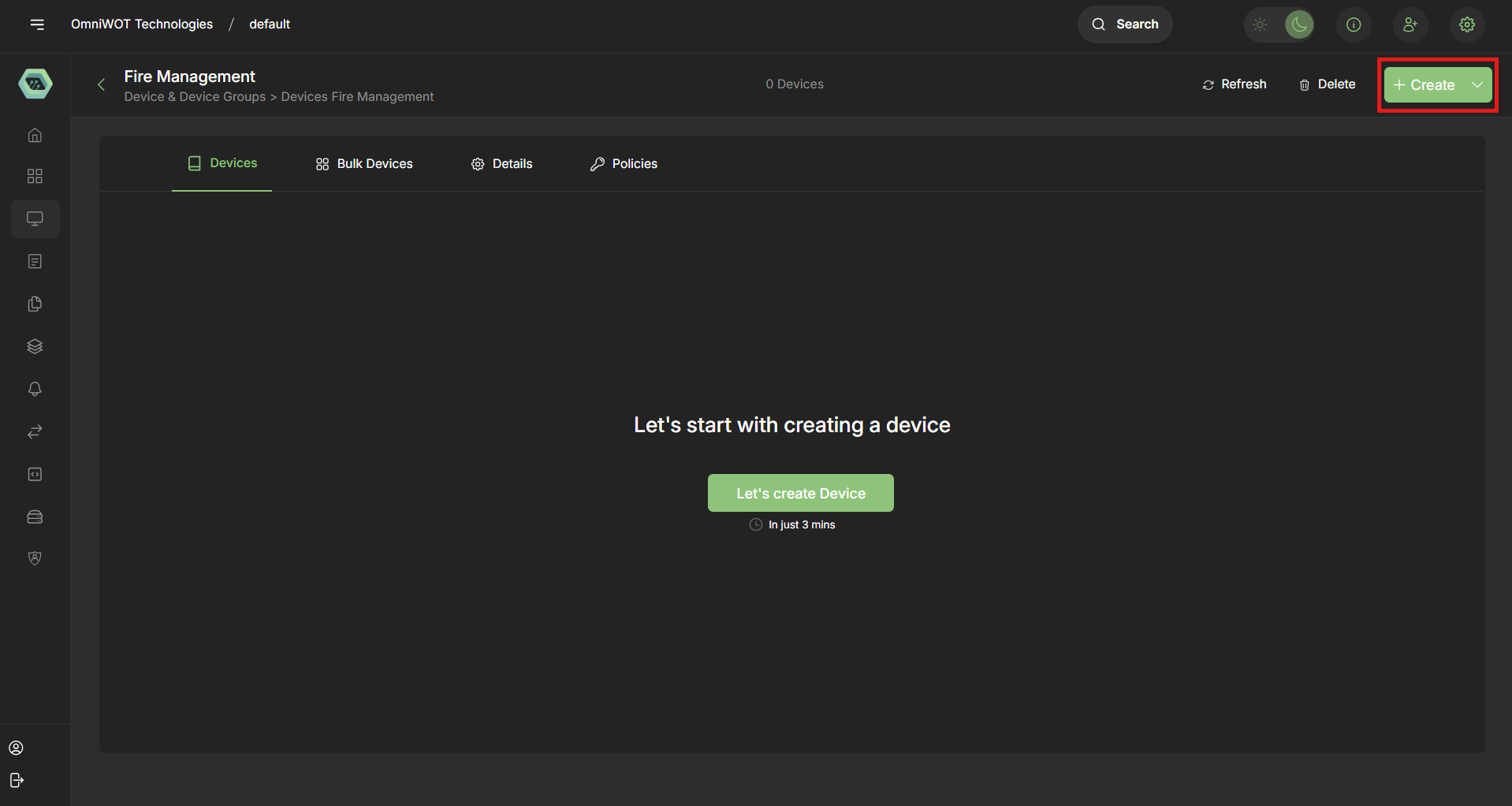
- From Group View go to an existing Device Group
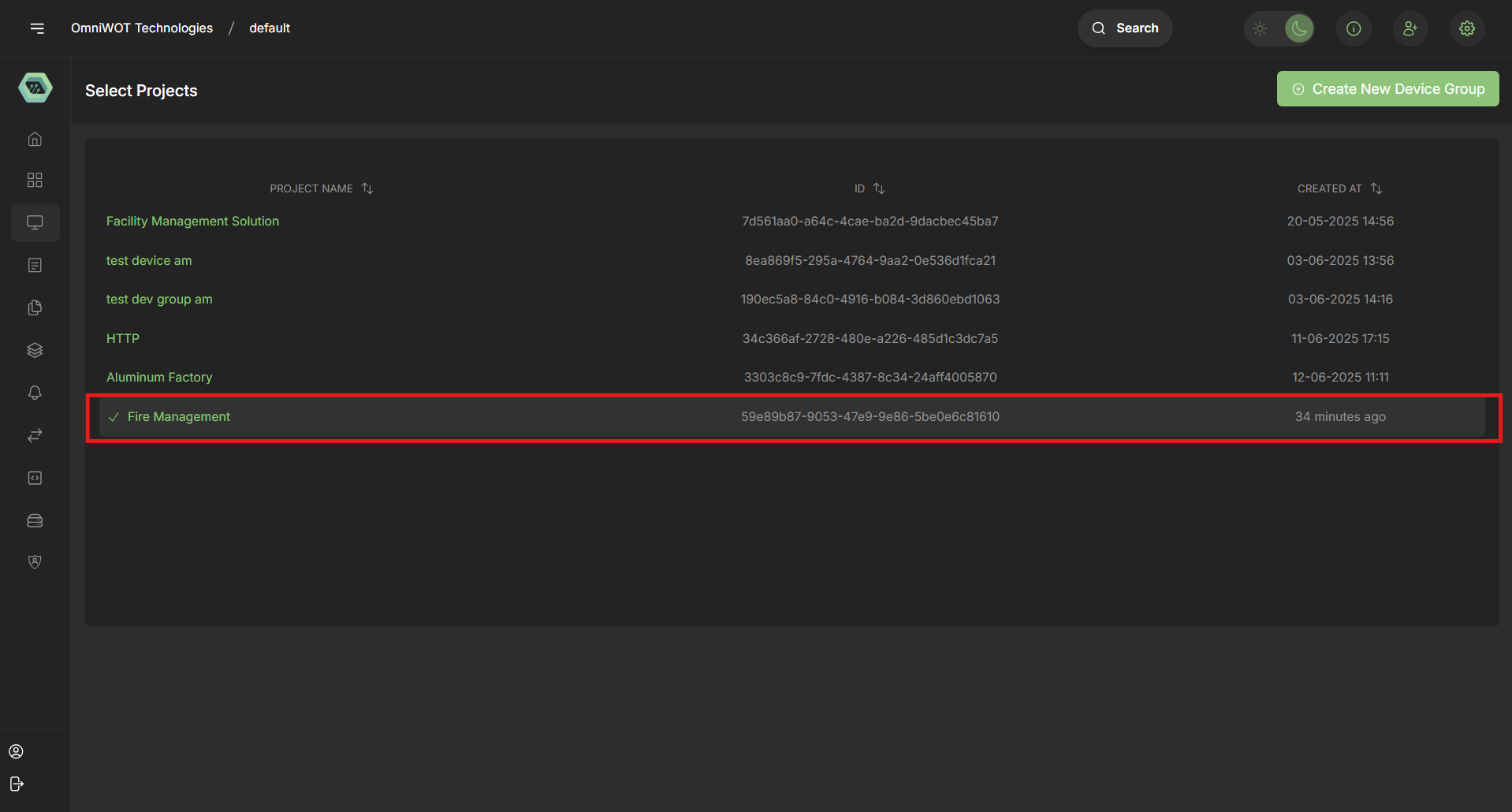
- Click Create
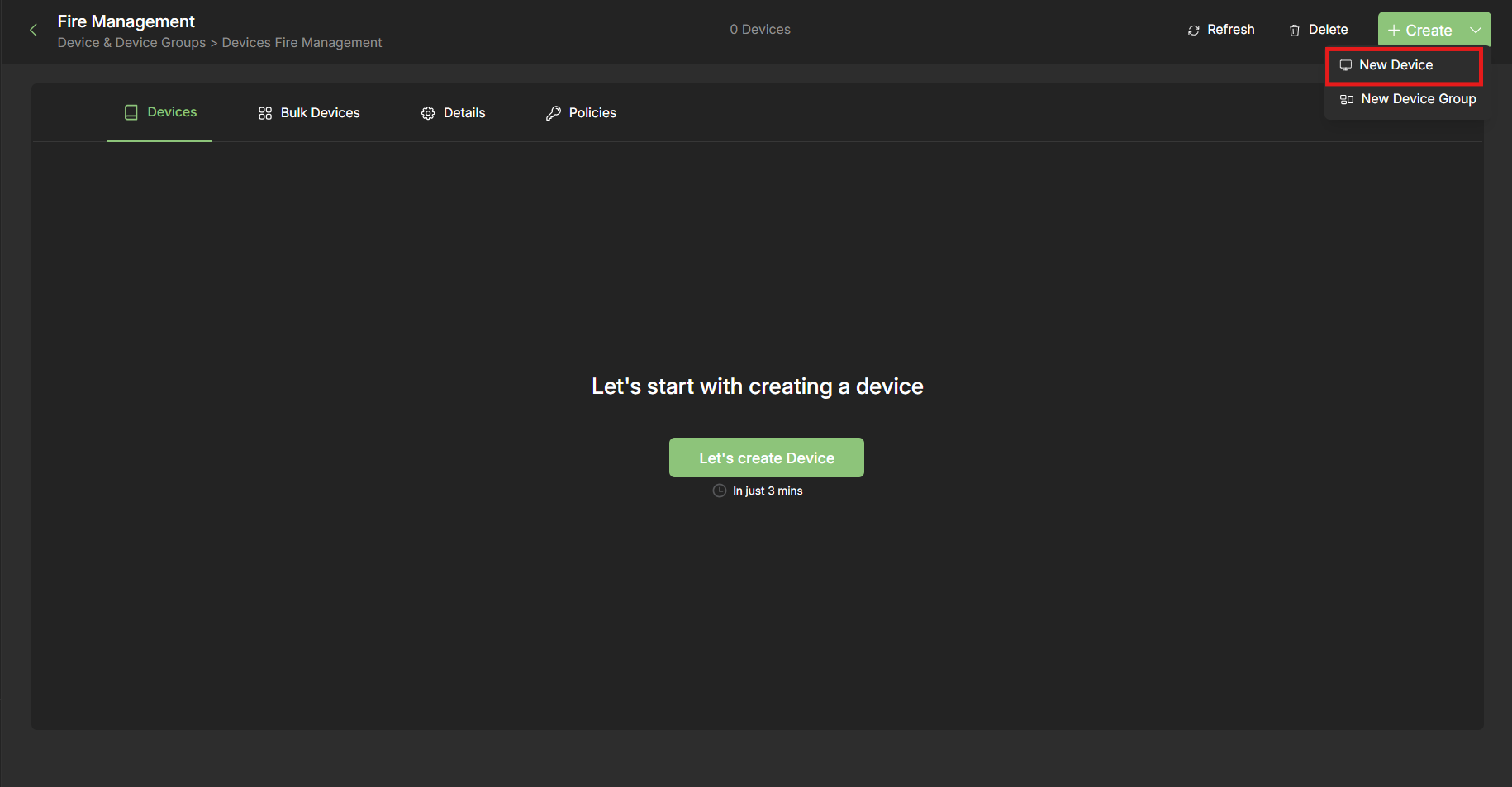
- Select New Device
- Fill in the fields:
- Device Name
- Device EUI (16 hex characters)
- Join EUI (16 hex characters)
- Region (e.g., EU868, IN865)
- Description (optional)
- Application Key (32 hex characters)
- Device Profile – select from dropdown
- System Template – (optional)
- Skip Frame Counter Check (toggle)
- Disable Device (toggle)
- Tags – key-value metadata
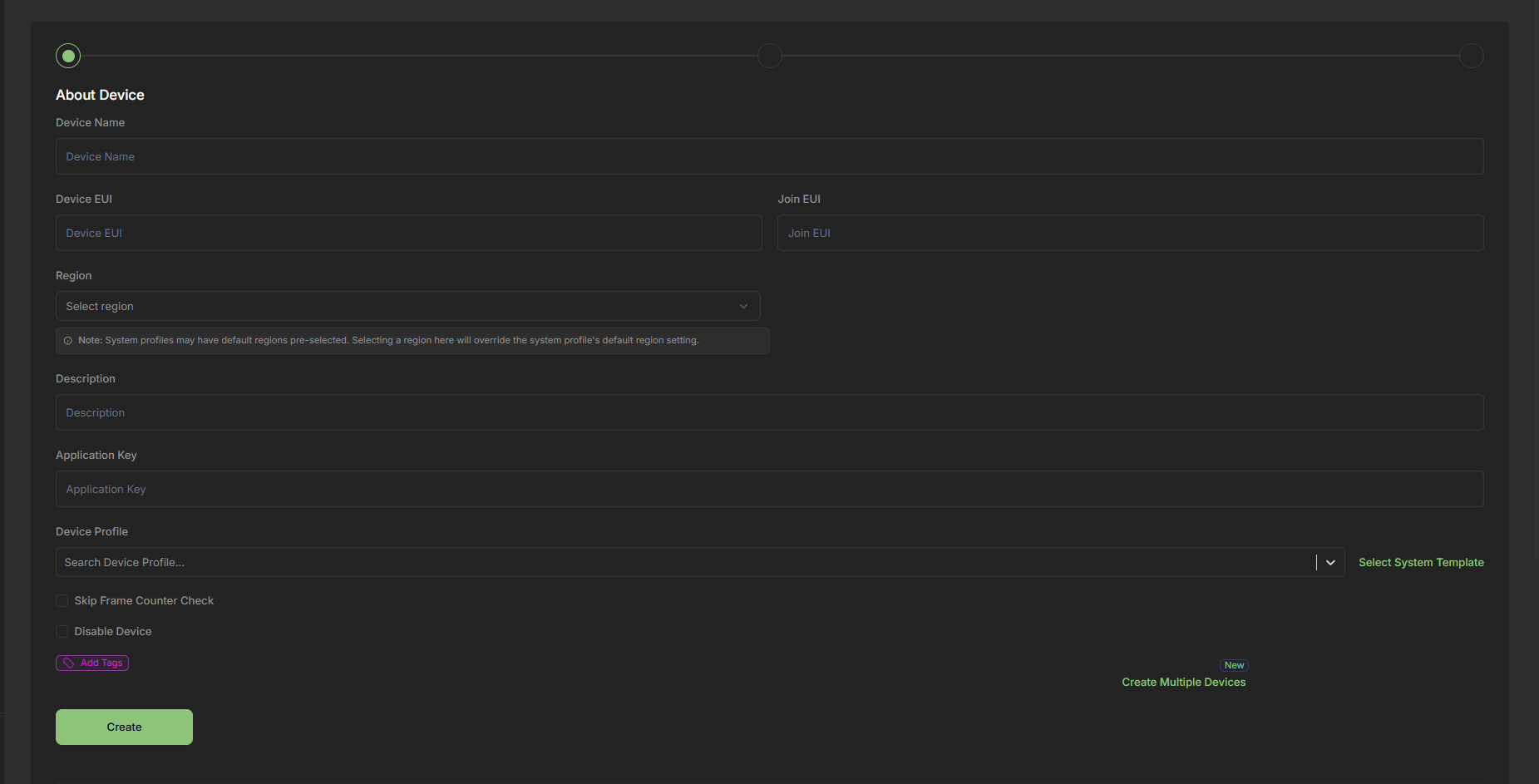
- Click Create to add the device
Create Multiple Devices
- From Group View go to an existing Device Group
- Click Create
- Select New Device
- Scroll Down till you see Create Multiple Devices
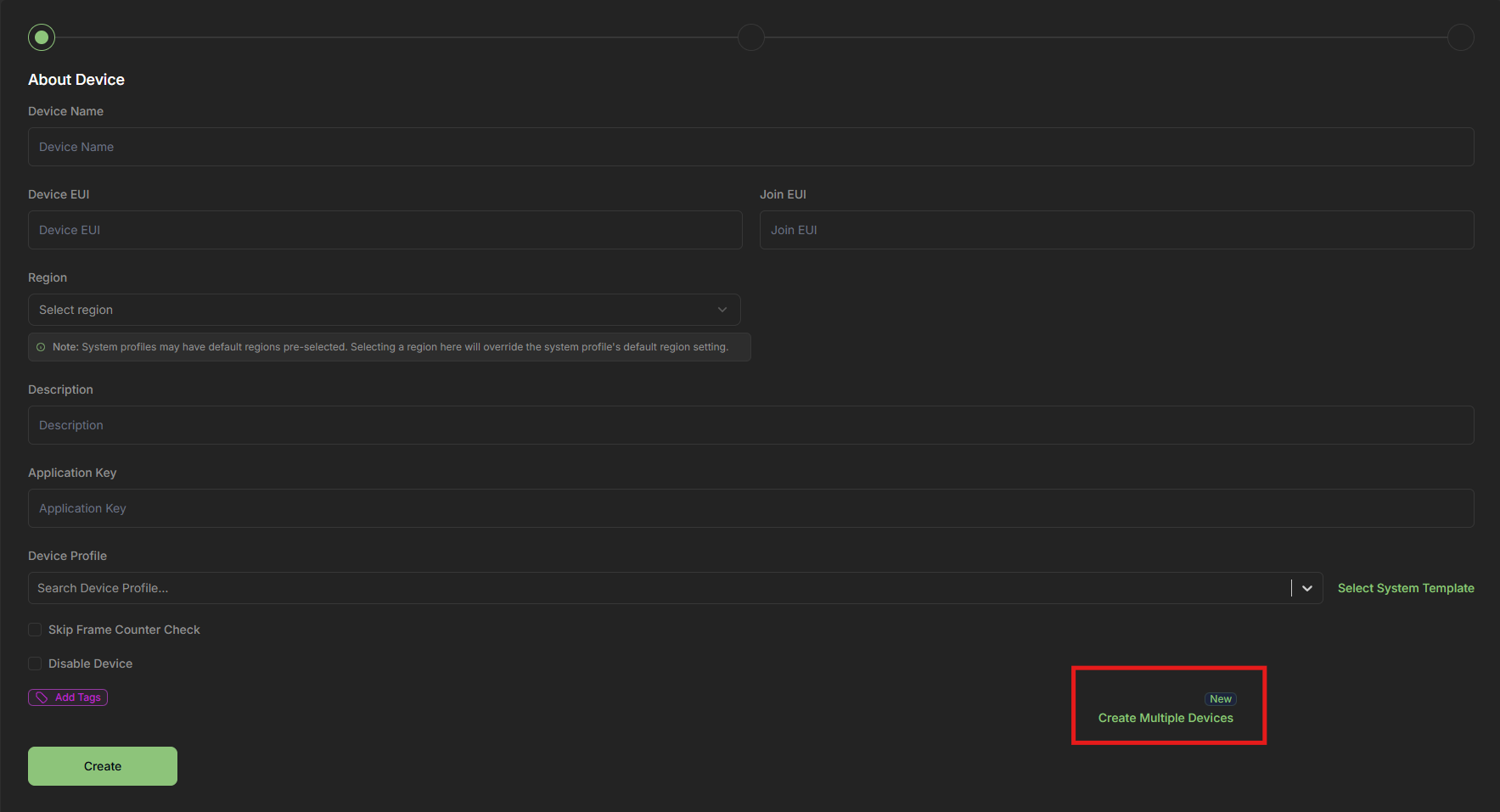
- Click Create Multiple Devices
- Fill common fields:
- Device Profile
- Region
- Skip Frame Counter Check (optional)
- Disable Devices (optional)
- Tags (optional)
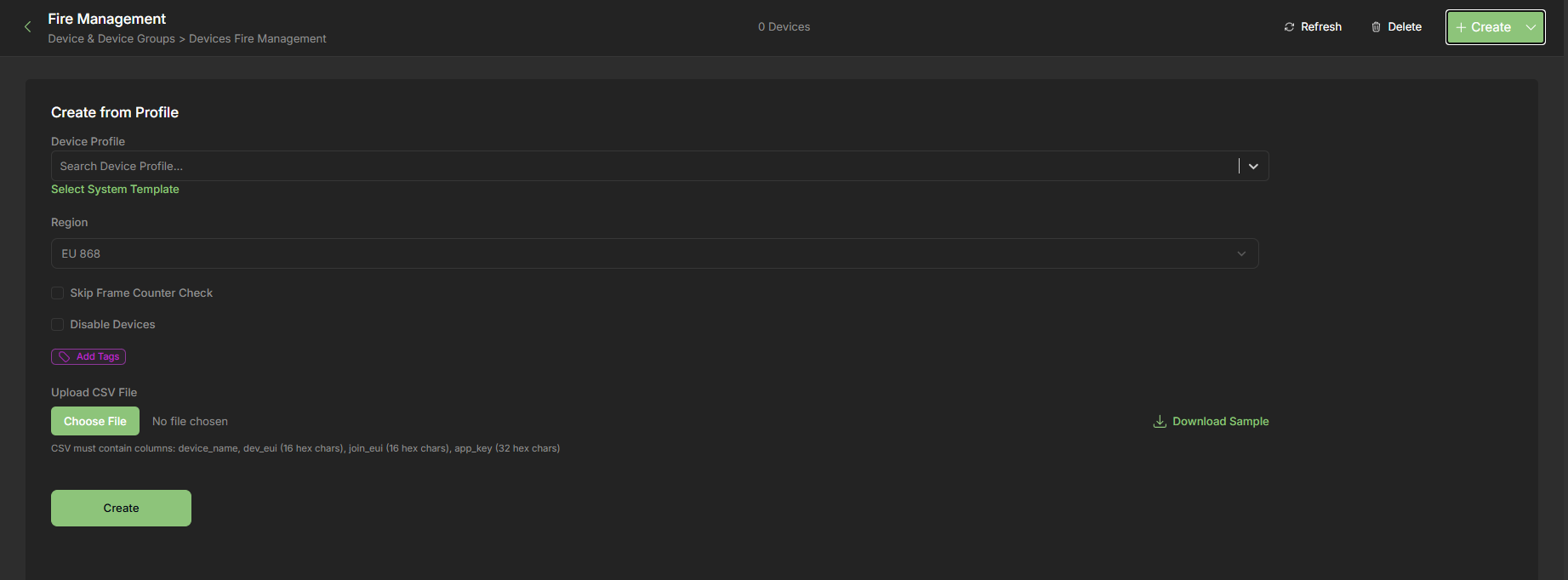
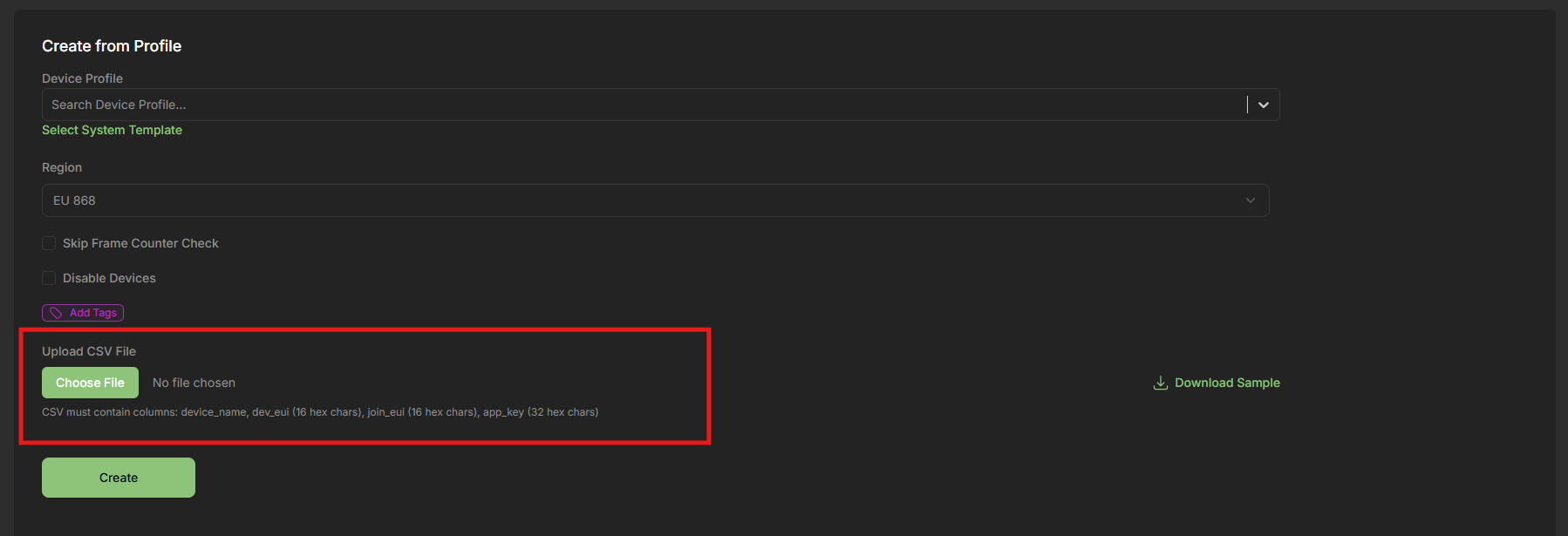
Upload a CSV file with columns:
device_namedev_eui(16 hex)join_eui(16 hex)app_key(32 hex)
Sample CSV file for bulk device creation:

- Click Create
Summary Table
| Feature | Description |
|---|---|
| Device Groups | Manual or smart collections of devices |
| Smart Groups | Auto-built using filters |
| Nested Groups | Supported (hierarchical grouping) |
| Assign via Device/Group | Both directions supported |
| Multi-group Support | A device can belong to multiple groups |
| Drag & Drop | Easy restructuring |
| Bulk Device Creation | Upload CSV to add multiple devices |
Pro Tips
- Use Smart Groups to track firmware upgrades automatically.
- Name your groups based on location or function (e.g.,
Plant-1,ColdStorage) - Keep group descriptions updated for better team collaboration.
- Bulk assign tags to devices via groups.
Related Features
- LoRaWAN Device Profiles
- Dashboard Configuration
- Event Triggers by Group
- Role-Based Access by Group