Dashboard Blueprints
Overview
Dashboards use a flexible, grid-based canvas that can arrange multiple panels in a responsive layout based on screen size.
Key Responsibilities
- Layout: Automatically organizes and positions panels using breakpoints for different devices.
- Composition: Maintains the collection of panels displayed on the dashboard.
- Structure: Supports organizational elements like panel groups, tabs, and hidden panels.
- Filters & Context: Allows dashboard-level filters that influence which data is shown in panels.
Modes
- Preview Mode: Displays sample data with limited functionality. Adding, deleting, or editing panels is restricted.
- Live Mode: Connects to real project, fleet, or device data. Full user interactions are available based on permissions.
Apply a dashboard blueprint
Step 1: Create a dashboard blueprint
- Navigate to
Dashboard → Select dashboard.
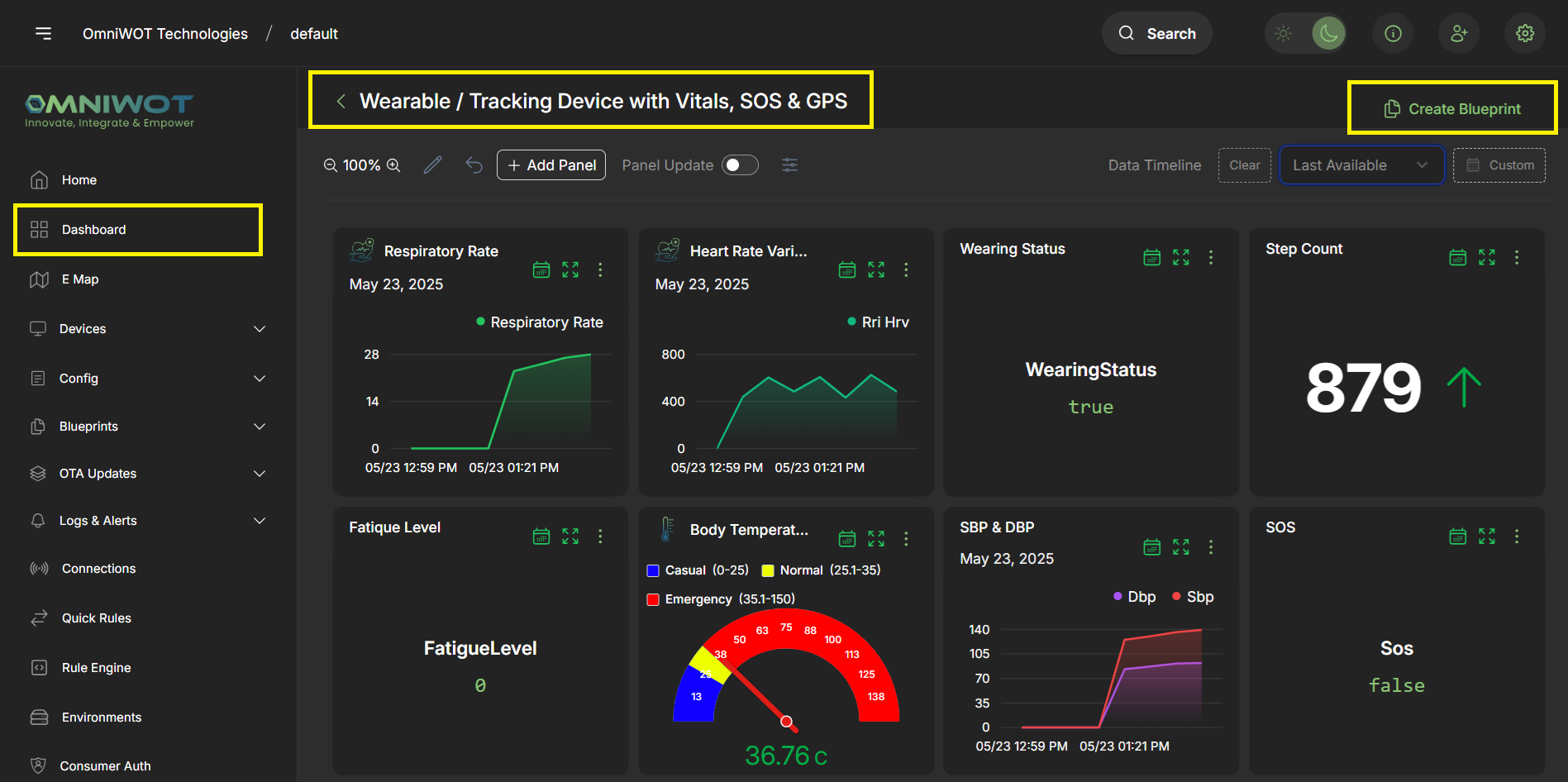
- Click on
Create Blueprintto create that dashboard blueprint.
Step 2: Fill blueprint details
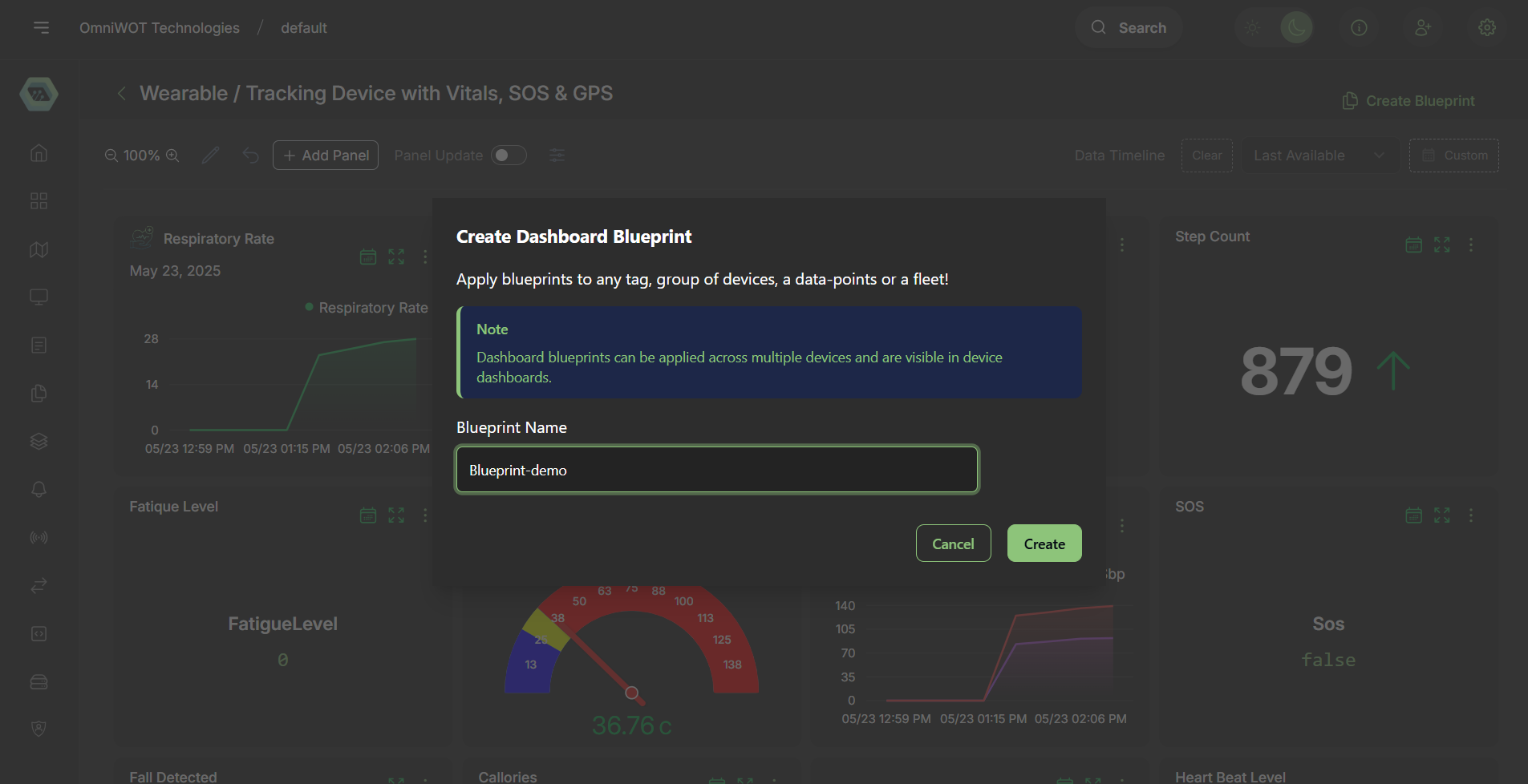
- Fill the details and click on
Createto create that dashboard blueprint. - Now you will be redirected to the dashboard blueprint page.
Step 3: Open the dashboard blueprint page
- After creating the dashboard blueprint, you will be redirected to the dashboard blueprint page. You can also access your dashboard blueprints at any time by navigating to
Blueprints → Dashboard.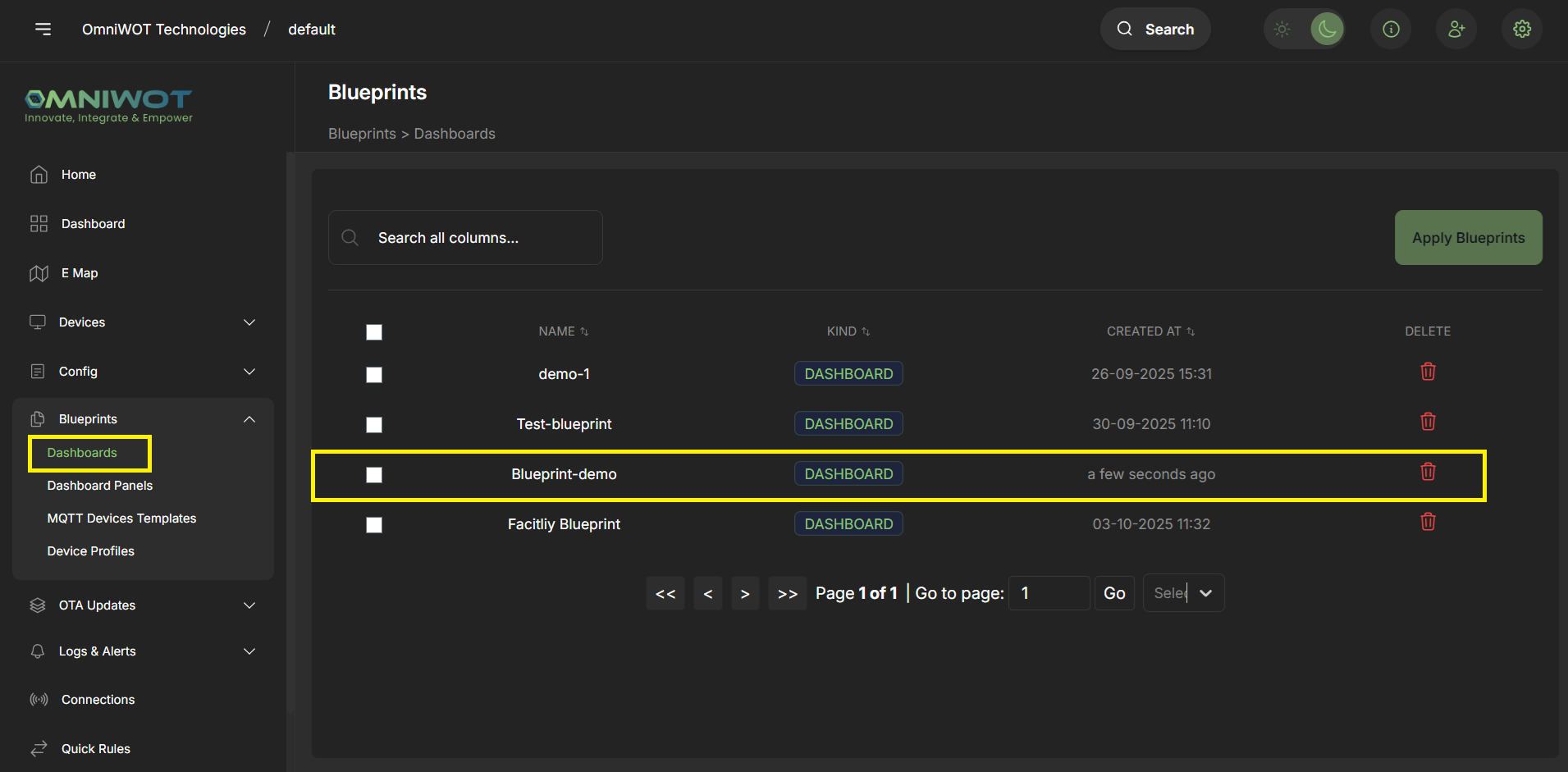
- Click
Blueprint Dashboardto go to the dashboard blueprint page.
Step 4: View the dashboard blueprint details
- View the dashboard blueprint details by clicking on
Blueprint Details.
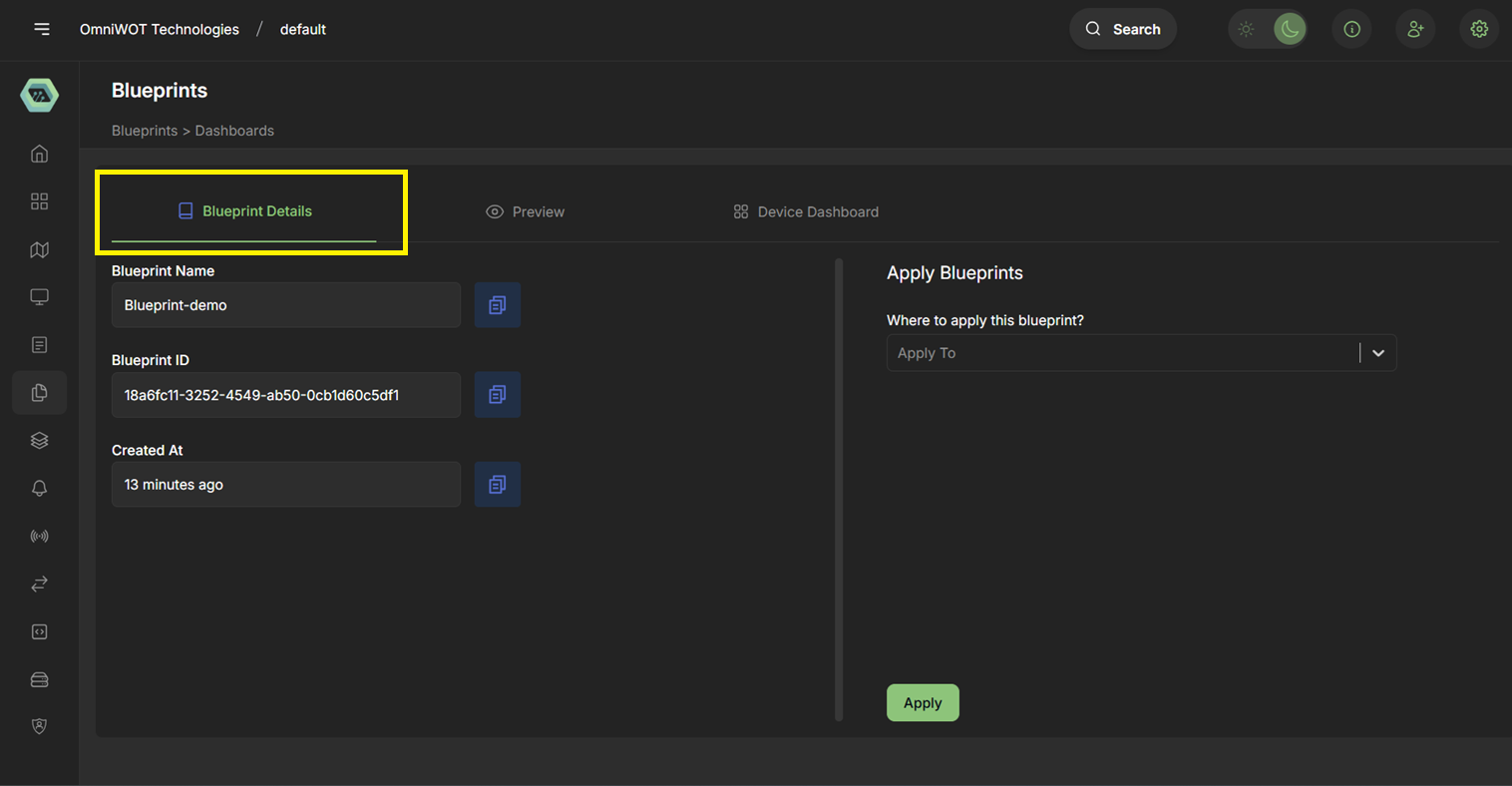
Step 5: Preview the dashboard blueprint panels
- Click on
Previewto preview the dashboard blueprint panels. - You can see the dashboard blueprint panels with sample data.
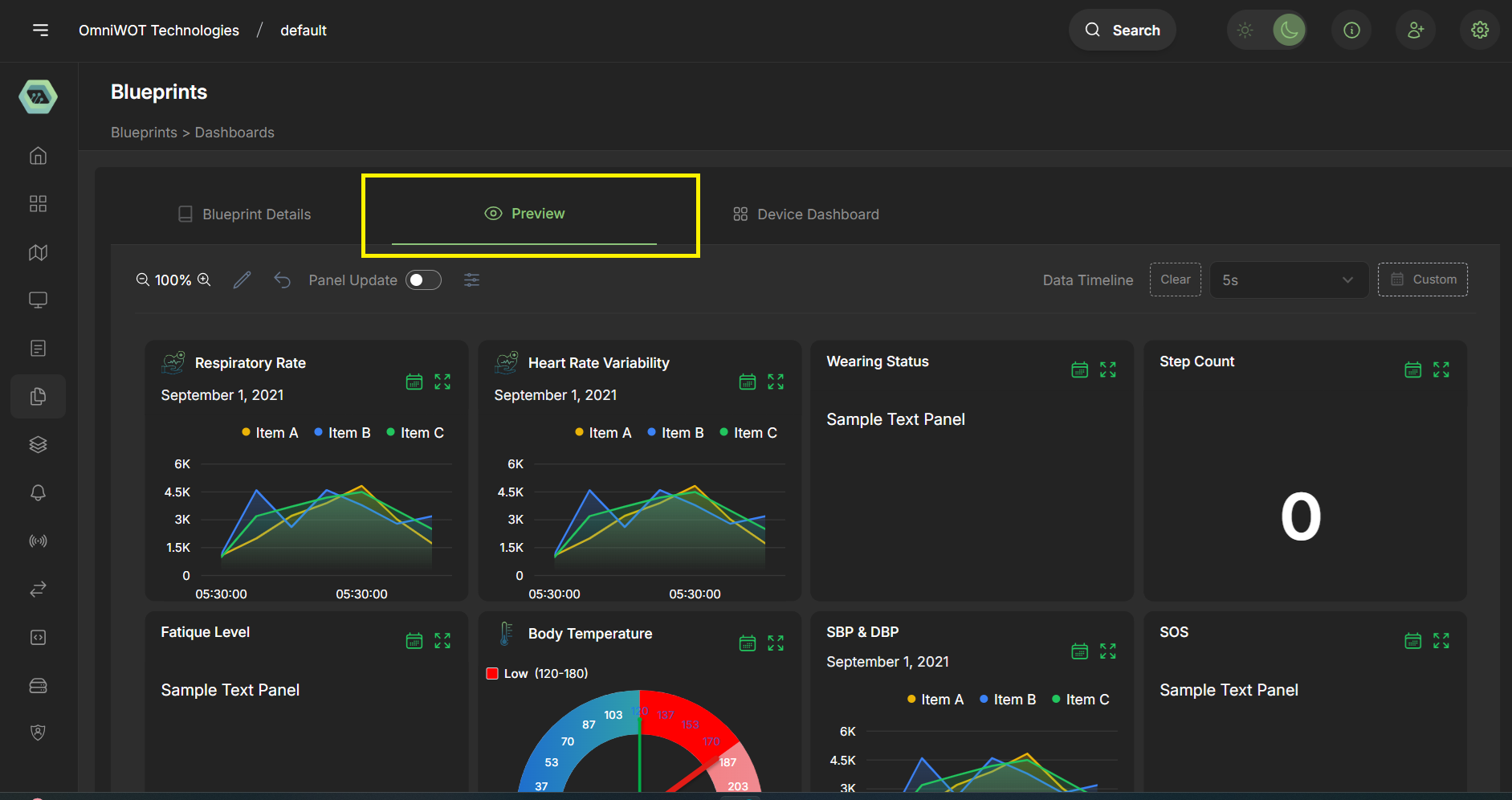
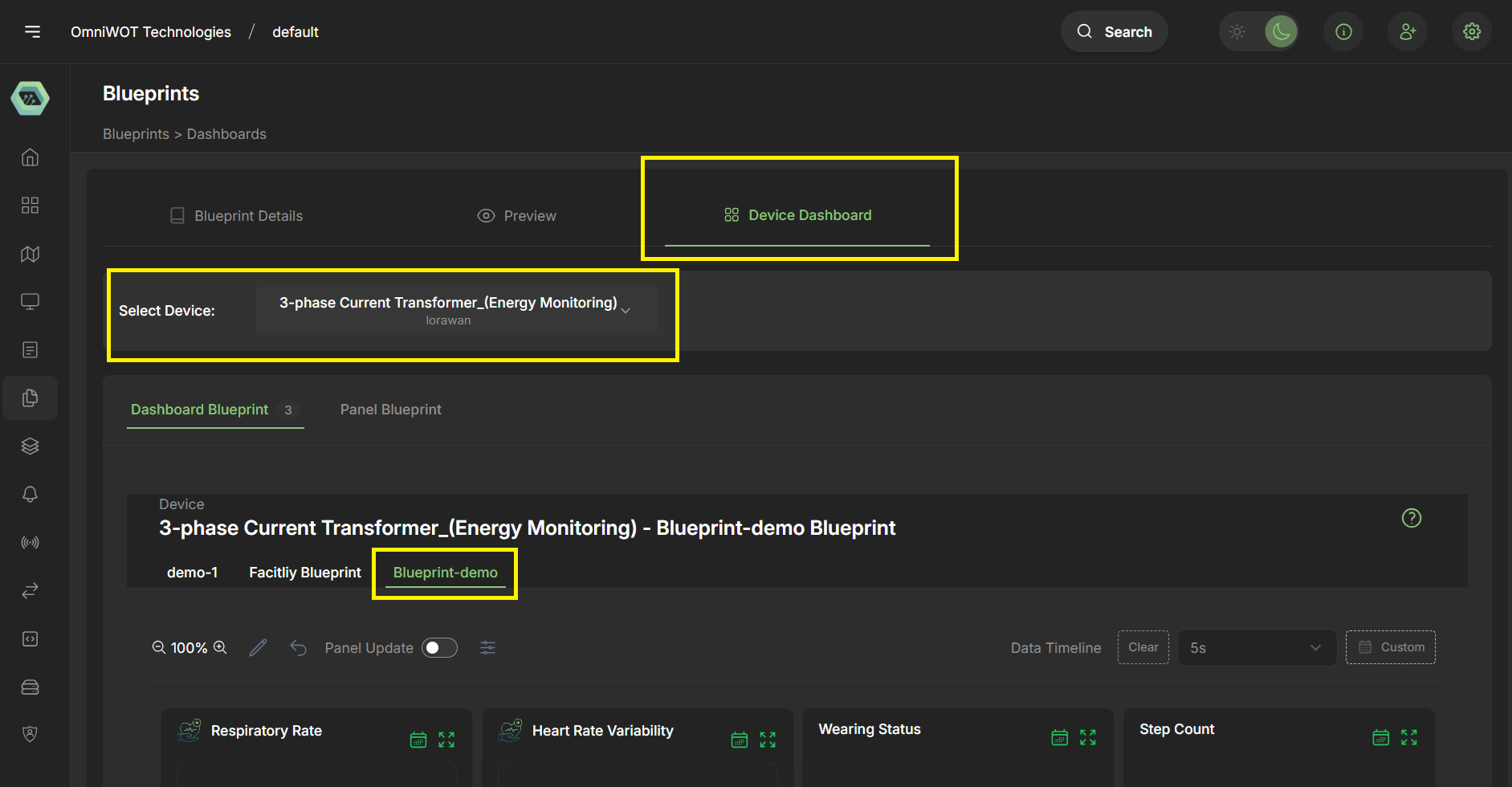
Step 6: View devices that applied the dashboard blueprint
- View devices that applied the dashboard blueprint by clicking on
Devices Dashboard.
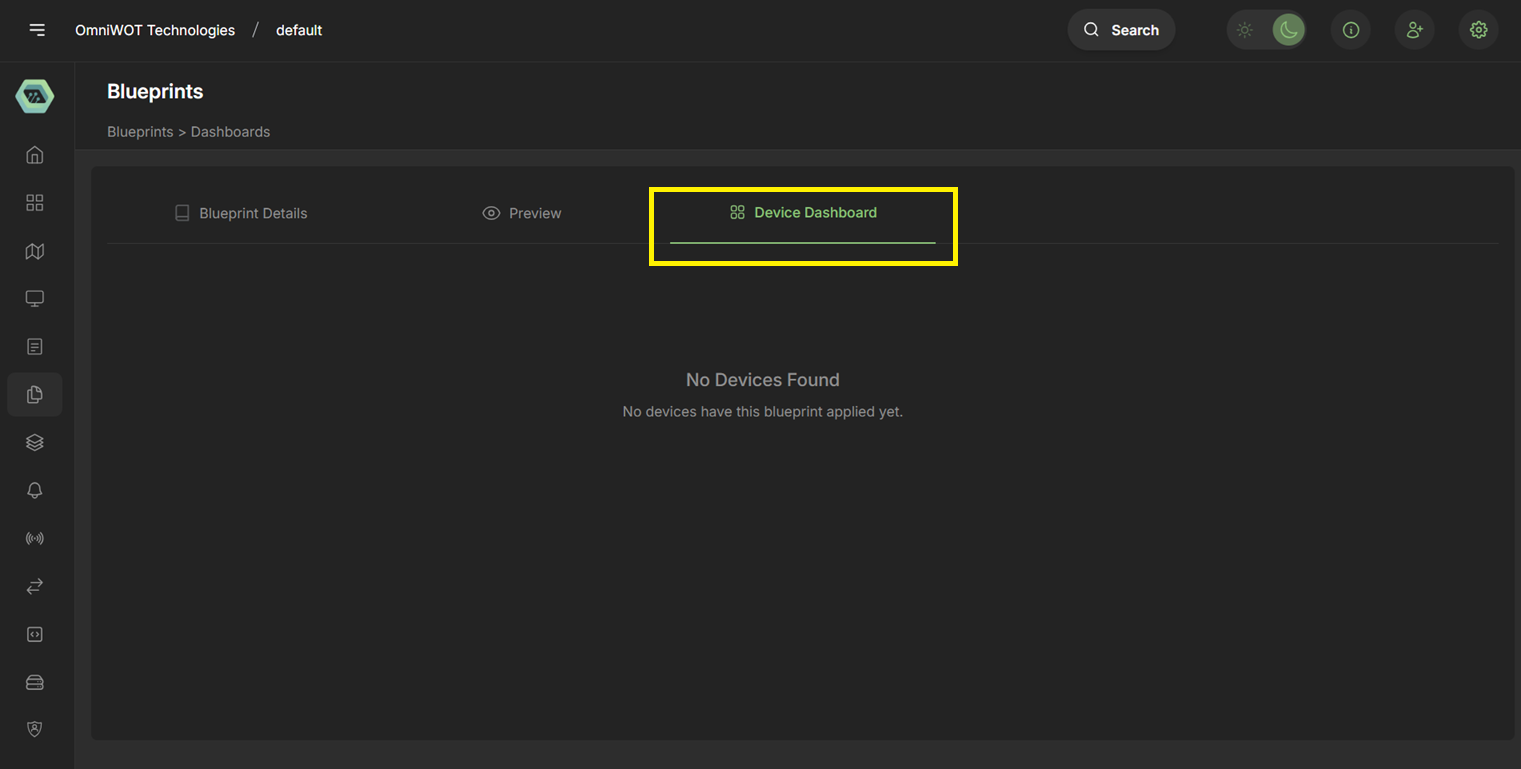
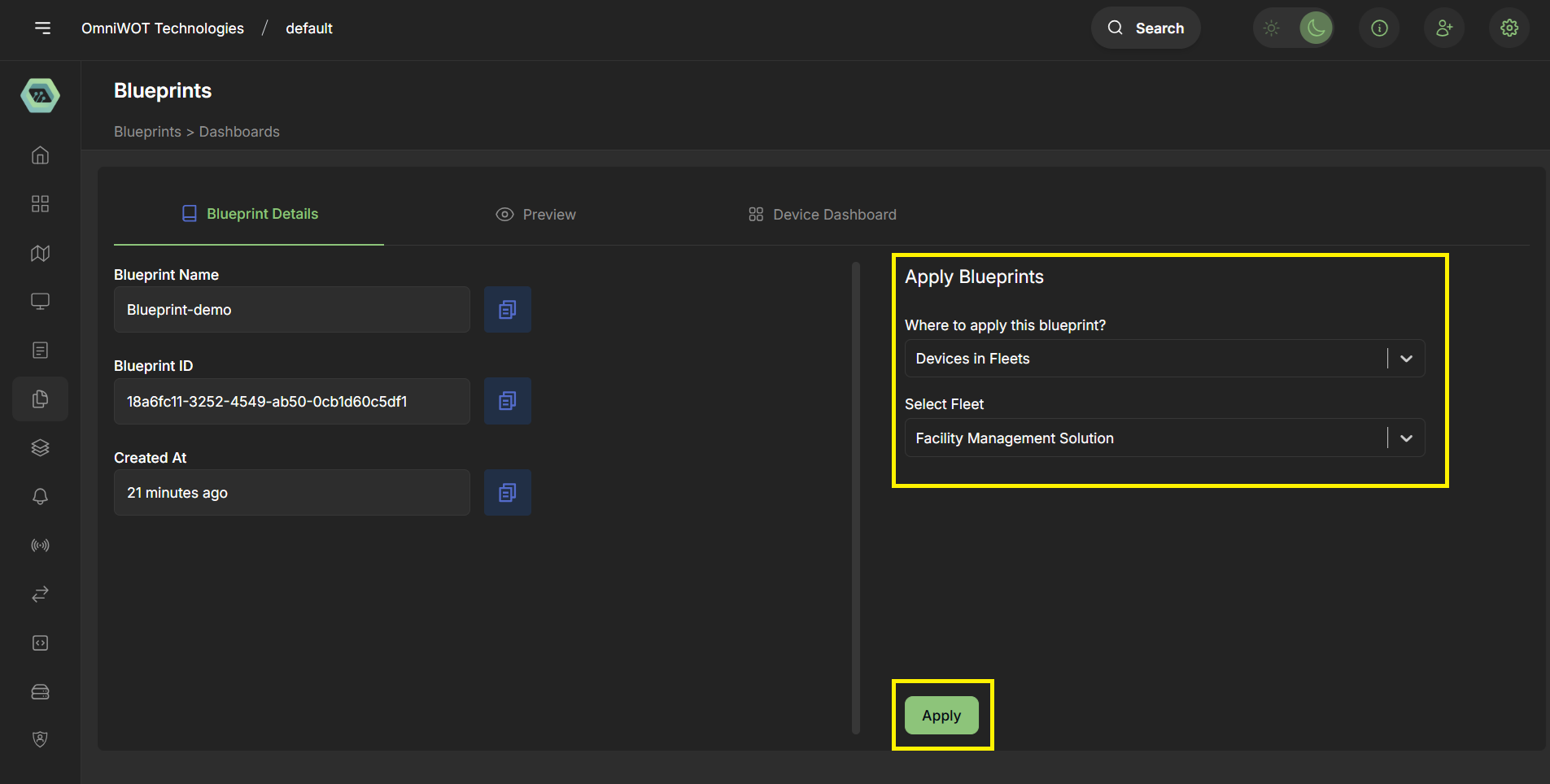
Step 7: Apply the dashboard blueprint to a device
- Navigate to
Blueprint Details. - Select the appropriate option to apply the dashboard blueprint to a device.
We have three options to apply the dashboard blueprint to a device:
1. Devices in data point definition:
- This will apply the dashboard blueprint to all devices that have the selected data point definition.
2. Devices with the tag:
- This will apply the dashboard blueprint to all devices that have the selected tag.
3. Devices in fleet:
- This will apply the dashboard blueprint to all devices that are in the selected fleet.
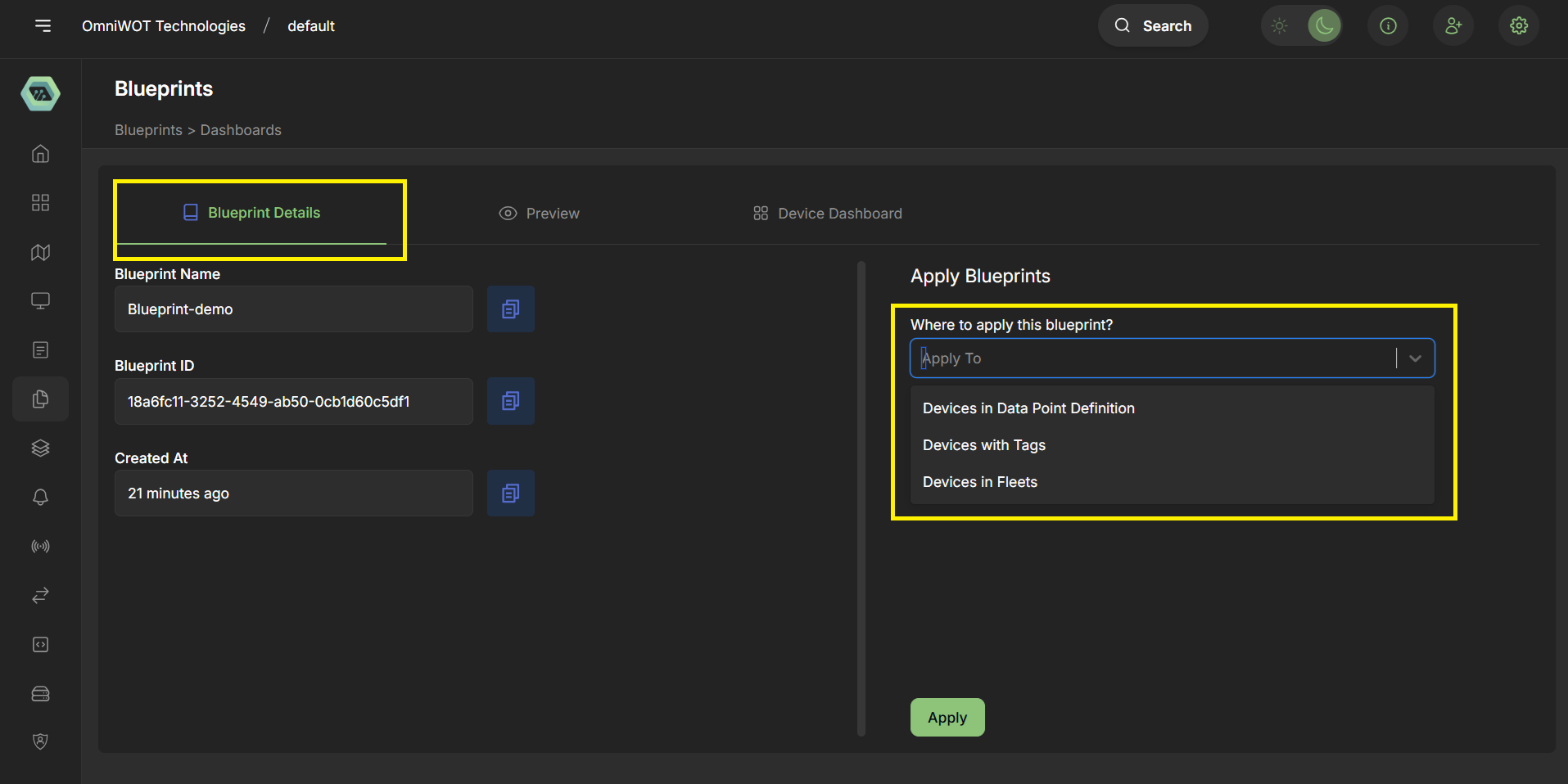
- We are selecting
Devices in Fleet. - Select the fleet from the dropdown.
- Click on
Applyto apply the dashboard blueprint to the devices.
Step 8: View the devices that applied the dashboard blueprint
- Navigate to
Devices Dashboard. - You can see the devices dropdown list. Select the device from the dropdown whose data you want to see in the dashboard.
Step 9: Access the dashboard blueprint in the device details
- Navigate to
Devices and Device Groups. - Select the
Device Group. - Select the
Device. - Navigate to
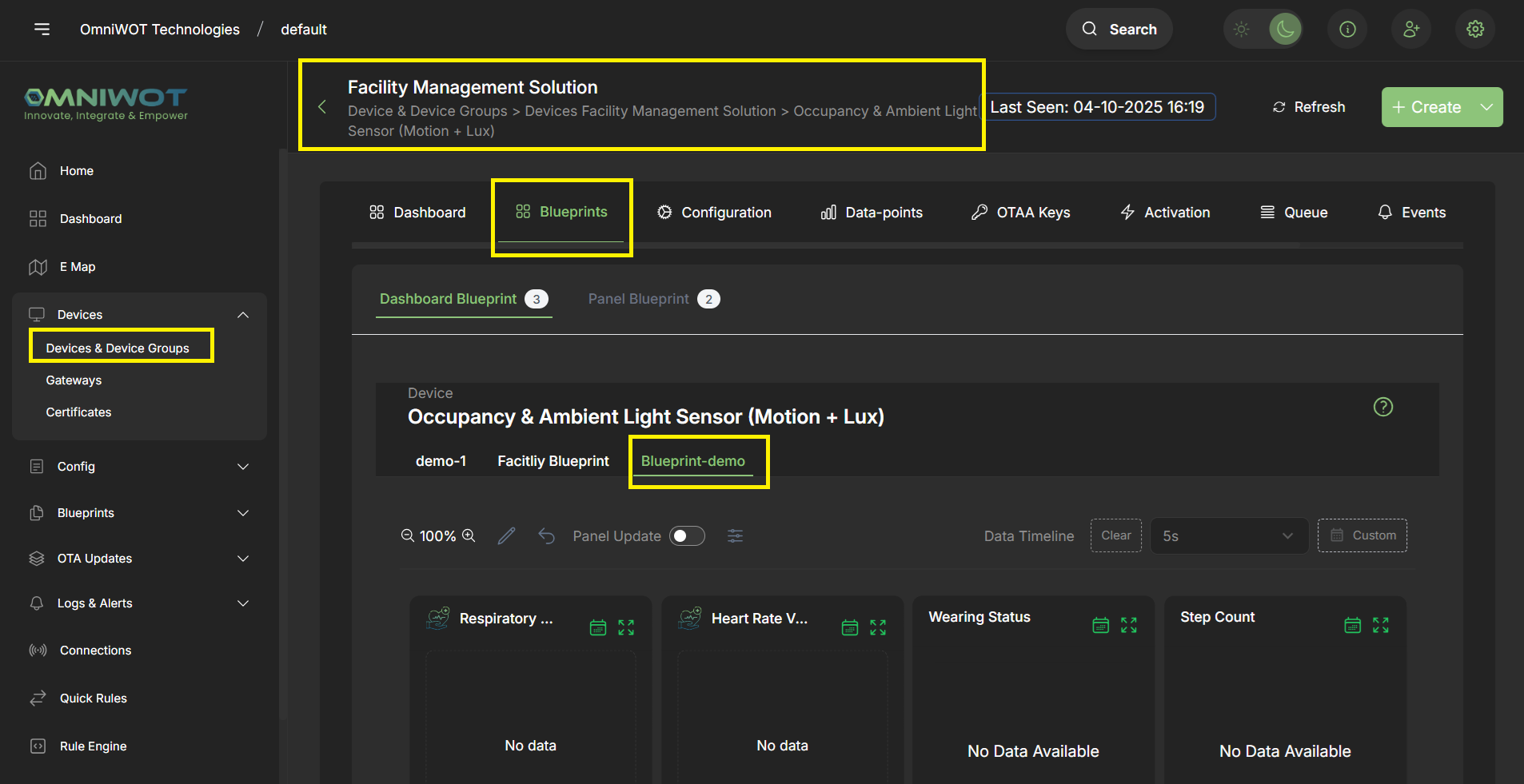
Blueprints → Dashboard Blueprint.
You can see all the dashboard blueprints that are applied to the device.